A solar inverter does more than convert DC electricity from solar panels into AC power. Modern inverters also use software to manage firmware updates, power production, grid synchronization, battery charging, communication, monitoring, and protection. Manufacturers periodically release software improvements, making a solar inverter firmware update an important part of maintaining a reliable solar installation.
If you own a SolarEdge, Fronius, Schneider, OutBack, SMA Sunny Boy, or SunPower inverter, you may be wondering how to check its firmware version and install an update. The process is different for each manufacturer and inverter generation. Some models support updates through an internet connection, while others require a USB drive, local interface, or specialized installer software.
In this guide, we will explain how firmware updates work, what to check before starting, and the general update methods for several popular inverter brands.
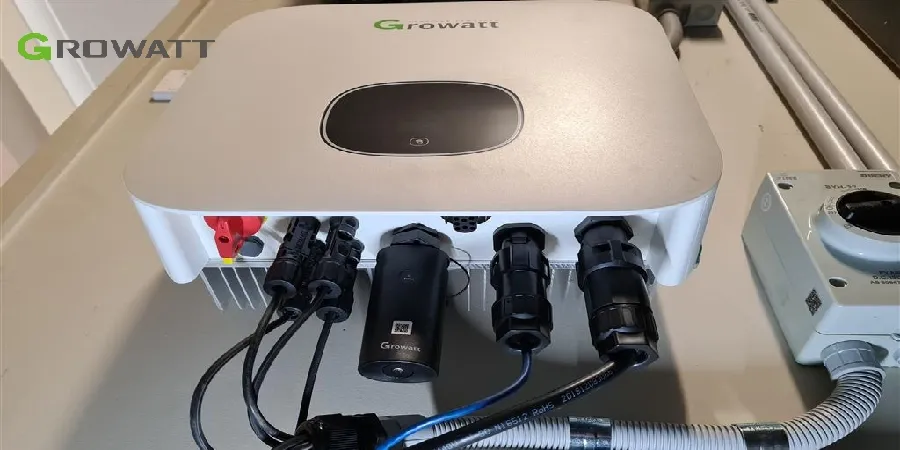
What Is Solar Inverter Firmware?
Firmware is the built-in software that controls the operation of an inverter. It runs on the inverter’s internal electronic hardware and manages its main functions.
Depending on the inverter model, firmware may control:
- Conversion of DC power into AC electricity.
- Maximum power point tracking (MPPT).
- Grid voltage and frequency monitoring.
- Battery charging and discharging.
- Communication with monitoring platforms.
- Fault detection and protection functions.
- Power export limitations.
- Data logging and system performance monitoring.
Unlike a mobile application, inverter firmware is installed directly on the device. It determines how the inverter’s internal processor and control circuits operate.
Why Should You Update Solar Inverter Firmware?
Manufacturers release firmware updates for several reasons. Installing an approved update may improve system operation, resolve known software problems, or add supported features.
Here are some common reasons to update inverter firmware.
1. Fix Software Problems
An inverter may experience communication errors, incorrect monitoring information, unexpected warnings, or other software-related problems.
A firmware update may correct these issues if they are covered by the release notes.
2. Improve Inverter Performance
Some updates improve control algorithms, MPPT operation, or the way the inverter responds to changing grid conditions.
However, a firmware update cannot increase the physical power rating of an inverter or compensate for undersized solar panels.
3. Improve Communication and Monitoring
Modern solar installations often connect to online monitoring platforms through Wi-Fi, Ethernet, cellular communication, or dedicated data loggers.
Firmware updates may improve communication reliability or compatibility with supported monitoring equipment.
4. Improve Compatibility
Some updates are required when connecting newer batteries, energy meters, monitoring devices, or other accessories.
Always check the manufacturer’s compatibility information before updating.
5. Address Security Issues
Internet-connected inverters can have software vulnerabilities. Manufacturers may release updates to address security issues and improve communication protection.
For connected solar systems, keeping supported software up to date is an important maintenance practice.
What to Check Before Updating Solar Inverter Firmware
Before starting an update, identify the exact inverter model and hardware version. Never assume that firmware designed for one model will work with another model from the same manufacturer.
Follow these checks before proceeding.
1. Identify the Inverter Model
Find the product label on the inverter. Record:
- Manufacturer name.
- Complete model number.
- Serial number.
- Hardware revision, if available.
- Current firmware version.
- Country or grid-code version.
The complete model number is important because similar-looking inverters may use different hardware and firmware packages.
2. Check the Current Firmware Version
Depending on the inverter, you may find the firmware version through:
- The inverter’s LCD.
- Its local web interface.
- A manufacturer’s mobile application.
- A monitoring portal.
- Installer configuration software.
Record the current version before making any changes. This information can help diagnose problems if the update does not complete successfully.
3. Download the Correct Firmware
Download firmware only from the manufacturer’s official website or an authorized support channel.
Check the following details:
- Exact inverter model compatibility.
- Hardware revision compatibility.
- Country or regional version.
- Required intermediate firmware versions.
- Release notes and known limitations.
Do not install firmware from unknown websites, forums, or third-party file-sharing services.
4. Check the Power Supply and Communication Connection
An interrupted update can leave an inverter in an error state or require manufacturer service.
Before starting:
- Ensure the inverter has the power sources required by its update procedure.
- Check that the communication connection is stable.
- Use a reliable computer or mobile device.
- Make sure the battery or device being used for the update has sufficient charge.
- Avoid starting an update during an unstable power condition.
Some inverters require sufficient PV voltage, grid power, or a particular operating state. Follow the exact manufacturer’s instructions.
5. Save Important Configuration Information
Where supported, back up the inverter configuration before updating.
Record important settings such as:
- Grid country and operating profile.
- Export limitation settings.
- Battery configuration.
- Communication settings.
- Power control settings.
Do not change grid protection parameters or regional settings simply to make a firmware update work.
SolarEdge Inverter Firmware Update
SolarEdge inverters use firmware to control power conversion, communication, monitoring, and supported energy-management equipment.
The update method depends on the inverter generation.
Some residential SolarEdge inverters use SetApp, while older models may have an LCD-based interface. Supported equipment and firmware versions are listed in SolarEdge’s official release notes.
How to Update SolarEdge Inverter Firmware
For supported SetApp-enabled inverters, the general process is:
- Identify the complete SolarEdge inverter model.
- Check the currently installed firmware version.
- Consult the official SolarEdge firmware release notes.
- Confirm whether an update is available and approved for your model and region.
- Use the manufacturer’s approved SetApp or installer procedure.
- Follow the instructions provided by the application or authorized installer.
- Allow the update and any required restart to finish.
- Check the firmware version again.
- Confirm that the inverter returns to normal operation and monitoring is working.
Not every SolarEdge inverter supports the same update method. Older LCD-equipped models and newer SetApp-enabled models have different procedures.
You can find firmware versions and release notes on the official SolarEdge firmware and software release notes page.
Fronius Inverter Firmware Update
Fronius provides different firmware update methods depending on the inverter family.
For example, current GEN24 inverters support local updates through their browser-based user interface. Selected SnapINverter models, including certain Primo, Symo, Eco, and Galvo models, support USB firmware updates.
How to Update Fronius GEN24 Firmware
Fronius documents the following general local update procedure:
- Find the exact GEN24 inverter model.
- Download the appropriate firmware file from the official Fronius support website.
- Connect to the inverter’s user interface through an approved WLAN or Ethernet connection.
- Open the System menu.
- Select Update.
- Choose Browse File.
- Select the compatible firmware file, commonly supplied in the manufacturer’s specified update format.
- Start the update and follow the on-screen instructions.
- Wait for the update to finish and verify the installed version.
Fronius also supports online updates for certain current products through Solar.web.
Fronius SnapINverter Firmware Update
Selected SnapInverters support a local USB update procedure.
The general process involves:
- Confirming that the inverter model supports USB firmware updates.
- Downloading the correct firmware package.
- Preparing the USB drive according to Fronius instructions.
- Connecting the USB drive to the designated inverter port.
- Selecting the appropriate update option through the inverter interface.
- Waiting for the update to complete.
- Checking the firmware version afterward.
USB formatting, directory structure, and update-file requirements may vary by model. Follow the specific instructions rather than assuming all Fronius inverters use the same USB procedure.
Important: Do not disconnect the inverter’s power supply during a firmware update.
For model-specific instructions, visit the official Fronius Software and Updates page.
Schneider Electric Inverter Firmware Update
Schneider Electric manufactures several inverter families, including Conext grid-tied inverters and battery-based inverter/chargers.
The firmware update method depends on the product series.
For example, Schneider documents USB firmware updates for certain Conext CL inverters, while some Conext XW systems use a gateway or local configuration interface.
Conext CL Firmware Update
Schneider’s documented Conext CL procedure uses a USB flash drive.
The general process is:
- Identify the exact Conext CL model.
- Obtain the correct firmware package from Schneider Electric.
- Prepare the USB drive according to the product manual.
- Ensure the required AC and PV power conditions are available.
- Connect the USB drive to the designated USB port.
- Follow the inverter display prompts to start the update.
- Allow the process to finish without interrupting power or communication.
- Verify the firmware version through the inverter information menu.
Some Conext CL procedures require access to the wiring box. Schneider warns that hazardous DC and AC voltages can be present inside the equipment.
This work must be performed by a trained technician using the required protective equipment.
Conext XW Firmware Update
Some Conext XW and XW Pro inverter/chargers use the InsightLocal interface for firmware upgrades.
The general workflow involves:
- Downloading the correct firmware package from Schneider Electric.
- Extracting the firmware file required by the device.
- Connecting to the system through the supported gateway or interface.
- Placing the system into the required standby condition.
- Opening the inverter/charger firmware section.
- Selecting the correct firmware file.
- Following the manufacturer’s upgrade instructions.
- Verifying the firmware version and system operation.
The exact process depends on the XW generation, gateway, and system configuration.
For additional details, see Schneider’s official Conext CL firmware upgrade guidance and the applicable Conext product manuals.
OutBack Power Inverter Firmware Update
OutBack Power manufactures inverter/chargers such as the FXR, VFXR, and Radian series. Its equipment may use system-management devices such as MATE3, MATE3s, or AXS Port.
The update method depends on the inverter series and the connected management equipment.
How to Update OutBack Inverter Firmware
Before starting an OutBack update:
- Identify the exact inverter model and system-management device.
- Check the installed firmware versions.
- Visit the OutBack Power official firmware download page.
- Find the firmware package specifically intended for your equipment.
- Read the release notes and installation instructions.
- Use the supported MATE3, MATE3s, AXS Port, or other manufacturer-approved update method.
- Follow the instructions for transferring the firmware.
- Verify the firmware version after the update.
Do not use a firmware file intended for an FXR inverter on a different OutBack series unless the manufacturer explicitly confirms compatibility.
OutBack provides separate firmware resources for its inverter/chargers and system-management devices. Updating one component does not necessarily update every connected device.
Visit the official OutBack Power Firmware Updates page to find available downloads and instructions.
Sunny Boy Inverter Firmware Update
Sunny Boy is a product family from SMA Solar Technology. Its firmware update procedure varies between older and newer inverter generations.
Some models support updates through a local web interface, while others use a communication product or a specific service procedure.
How to Update Sunny Boy Firmware
For supported SMA Sunny Boy models, the general procedure is:
- Identify the complete Sunny Boy model number.
- Check the installed firmware version through the inverter interface or monitoring platform.
- Visit the official SMA product page.
- Download the firmware file that matches the exact inverter.
- Connect to the inverter’s user interface.
- Log in with the required installer-level access.
- Open the appropriate update or device configuration menu.
- Select the compatible firmware file or use the supported online update function.
- Follow the on-screen instructions.
- Check the event log and confirm the new firmware version.
For some models, SMA provides an automatic update option. Other models require a manual firmware file.
SMA Sunny Boy Firmware Update Through the User Interface
A supported SMA inverter may provide a manual update option through its web interface.
For example, certain models use a procedure similar to:
- Open the inverter’s user interface.
- Log in with installer permissions.
- Select the configuration or device update menu.
- Choose the firmware update option.
- Select the downloaded firmware file.
- Confirm that the file is compatible.
- Start the update.
- Follow the instructions until the inverter restarts.
- Check the event monitor for successful completion.
These menu names are examples from particular SMA product manuals, not universal instructions for every Sunny Boy generation.
For example, newer Sunny Boy Smart Energy models also support firmware updates through the SMA 360° app.
You can find official firmware downloads and product documentation on the SMA Solar website.
SMA Inverter Firmware Update
SMA manufactures several inverter families, including Sunny Boy, Sunny Tripower, and Sunny Boy Smart Energy.
Although these products share the SMA brand, their update methods are not identical.
Depending on the model, SMA supports:
- Automatic firmware updates.
- Manual updates through the inverter’s web interface.
- Firmware updates using a USB flash drive.
- Updates through supported SMA monitoring and communication products.
- Updates through the SMA 360° app on selected models.
General SMA Inverter Firmware Update Procedure
For a model that supports manual updates through its user interface:
- Find the complete inverter model number.
- Check the current firmware version.
- Download the correct update file from the official SMA product page.
- Connect to the inverter’s web interface.
- Log in with installer access.
- Open the relevant firmware update menu.
- Select the downloaded update file.
- Confirm the file is compatible.
- Start the update and follow the instructions.
- Check the inverter event log to confirm successful completion.
Some models allow the inverter to search for available firmware updates online. Others require a manually downloaded file.
For battery-connected systems, additional conditions may apply. For example, certain SMA hybrid models require the battery to remain switched on and the inverter to remain connected to the utility grid during an update.
Never disconnect equipment simply because another SMA model uses a different procedure.
For official instructions, visit the SMA inverter firmware documentation.
How to Update Firmware on SunPower SB6000TL-US-22 Inverter
The SunPower SB6000TL-US-22 is a specific inverter model, so it is important to use documentation and firmware intended for that exact unit.
Do not assume that instructions for a newer SunPower inverter or a SolarEdge-branded product will work on this model.
Before attempting an update, identify the complete model and installed firmware version from the inverter label and its available information interface.
Important Checks Before Updating the SB6000TL-US-22
Check these details first:
- Confirm that the model is exactly SB6000TL-US-22.
- Record the existing firmware version.
- Identify the communication hardware installed in the inverter.
- Check the applicable SunPower documentation and service information.
- Confirm whether an update is actually available for this model.
- Verify whether the update requires an authorized installer or manufacturer service support.
How to Approach the Firmware Update
For this specific model, do not follow a generic USB or internet-based update procedure unless the manufacturer’s documentation explicitly confirms it.
Use this approach:
- Locate the model-specific installation and service documentation.
- Contact SunPower support or the authorized service provider responsible for the equipment.
- Ask whether a firmware update is available for the SB6000TL-US-22.
- Confirm the required update package and installation method.
- Verify whether special communication equipment, service software, or installer authorization is required.
- Have the update performed according to the approved procedure.
- Confirm the installed firmware version and normal inverter operation afterward.
I cannot verify a current, publicly documented firmware-update procedure specifically for the SB6000TL-US-22. Therefore, I would not recommend downloading an unrelated firmware file or attempting an undocumented update.
If the inverter is working normally, an update should not be attempted simply to obtain a newer version number. Confirm that the manufacturer recommends an update for your particular unit.
Common Problems During Solar Inverter Firmware Updates
Firmware updates do not always complete successfully. Understanding common problems can help you avoid unnecessary equipment damage.
| Problem | Possible cause | Recommended action |
|---|---|---|
| Firmware file rejected | Incorrect model or hardware version | Verify the exact model and file |
| Update option unavailable | Installer access required or model unsupported | Check the product manual |
| Update stops midway | Power or communication interruption | Do not restart randomly; contact support |
| Inverter does not reconnect | Restart or communication issue | Follow the manufacturer’s recovery instructions |
| Firmware version does not change | Update not completed or wrong package | Check the event log and release notes |
| Monitoring stops working | Communication module or configuration issue | Check network and device status |
| New fault appears after update | Configuration or compatibility issue | Record the error and contact the manufacturer |
What Should You Do If a Firmware Update Fails?
If an update fails, do not immediately disconnect the inverter or repeatedly attempt to install the same firmware.
Instead:
- Record the error message.
- Note the firmware version before the update.
- Check the manufacturer’s troubleshooting instructions.
- Keep the inverter in the state specified by the update procedure.
- Contact authorized technical support if the device does not recover normally.
Some firmware recovery procedures require specialized tools and service access.
Important Safety Precautions
Solar inverter firmware updates involve electronic equipment connected to potentially dangerous DC and AC sources.
Keep these precautions in mind:
- Never open an inverter enclosure to access internal electronics unless you are qualified and authorized.
- Do not disconnect PV cables while they are carrying current.
- Never interrupt the power supply during an update unless the manufacturer’s recovery instructions specifically require it.
- Do not change grid protection or country settings without authorization.
- Do not install firmware from unofficial websites.
- Keep a record of the existing firmware version and configuration.
- Follow the manufacturer’s required shutdown, standby, and restart procedure.
Solar panels can produce dangerous DC voltage during daylight, even when the AC supply is disconnected. Internal capacitors may also retain hazardous voltage after shutdown.
How Often Should You Update Solar Inverter Firmware?
There is no universal update schedule for every solar inverter.
Some manufacturers recommend enabling automatic updates on supported models. Others publish updates when they fix a known issue, improve compatibility, or introduce a new feature.
A practical maintenance approach is to:
- Check the manufacturer’s firmware release notes periodically.
- Review updates when troubleshooting a known software issue.
- Update when required for compatibility with new equipment.
- Follow manufacturer recommendations for security-related updates.
- Avoid installing optional firmware without checking its release notes.
Keeping firmware current is useful, but installing every available update without checking compatibility is not a good maintenance strategy.
Conclusion
A solar inverter firmware update can help resolve software issues, improve communication, support new equipment, and maintain reliable system operation. However, the correct procedure depends on the manufacturer, inverter generation, and installed communication hardware.
SolarEdge, Fronius, Schneider Electric, Outback Power, and SMA all provide different update methods. Some use USB drives, while others support browser-based interfaces, monitoring platforms, or dedicated installer applications.
For the SunPower SB6000TL-US-22, use model-specific service guidance rather than a generic update procedure.
Always verify the exact inverter model, download firmware from an official source, back up important settings where supported, and follow the manufacturer’s instructions. When an update requires internal access or specialized tools, leave the work to a qualified technician.
Frequently Asked Questions
1. How do I know if my solar inverter needs a firmware update?
Check the manufacturer’s release notes and compare the available firmware with the version installed on your inverter. An update may be useful if it addresses a known fault, compatibility issue, or security problem.
2. Can I update solar inverter firmware myself?
Some manufacturers allow users or installers to perform updates through a web interface or USB drive. However, other models require authorized installer access or specialized equipment. Always check the model-specific instructions.
3. Will a firmware update increase solar panel output?
Not necessarily. A firmware update may improve software operation or correct an issue affecting performance, but it cannot increase the inverter’s physical power rating or the panels’ rated capacity.
4. Can a firmware update damage a solar inverter?
An incorrect firmware file or interrupted update can cause serious software problems and may leave the inverter unable to operate normally. Using the correct manufacturer-approved firmware and following the update instructions reduces this risk.
5. Do all SMA Sunny Boy inverters use the same firmware?
No. Different Sunny Boy generations and hardware versions require their own compatible firmware packages and update procedures.
6. Can I update my SunPower SB6000TL-US-22 inverter using a USB drive?
Do not assume that this model supports a generic USB update. Confirm the supported method with model-specific SunPower documentation or authorized service support before attempting an update.